 PassCollect
How to show your loyalty cards on Apple Watch with PassCollect
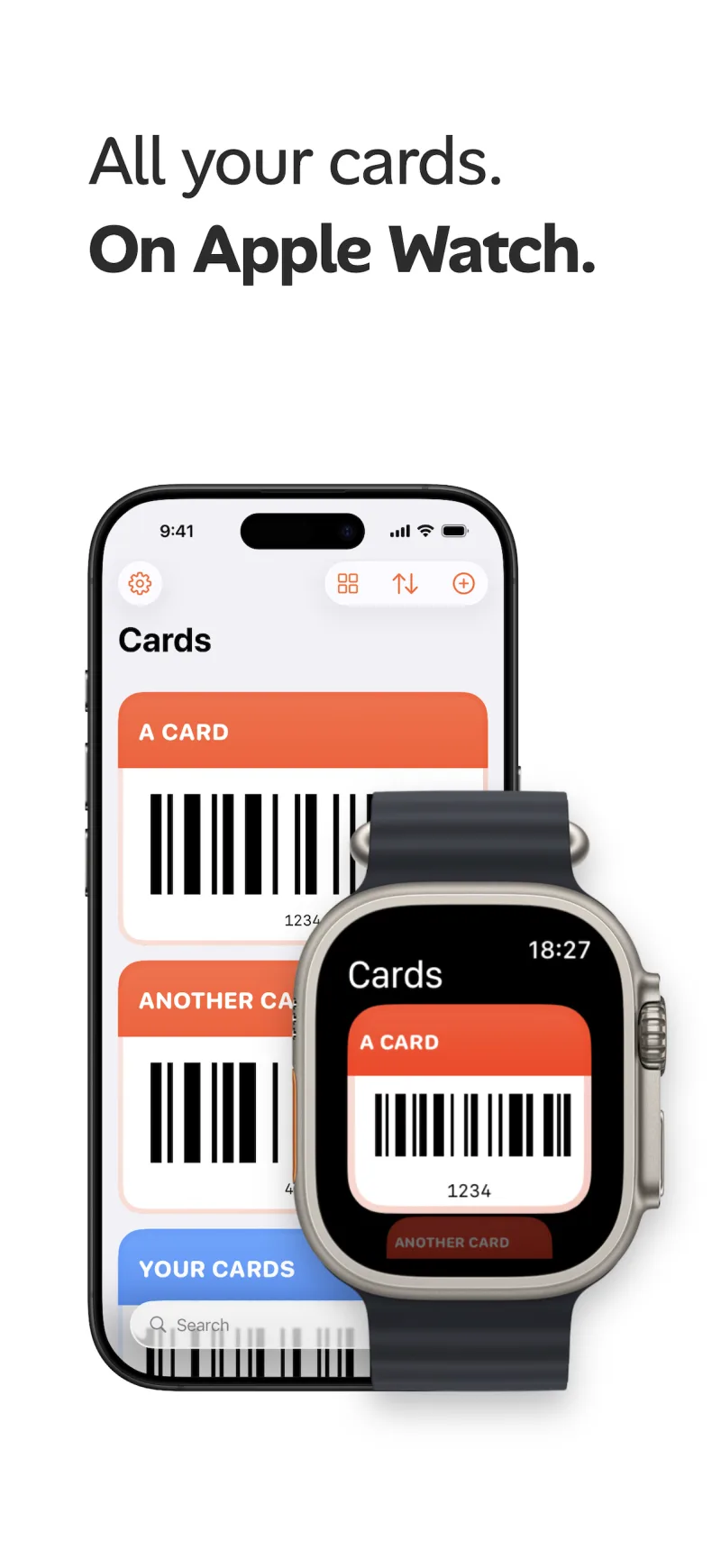
Summary: PassCollect includes full Apple Watch support. The watch app shows your cards with their barcodes, so you can scan a loyalty card at checkout straight from your wrist without taking out your iPhone.
Why use your watch for loyalty cards?
At a busy checkout, you often have your hands full. Showing a barcode from your wrist means you don't need to unlock your phone, find the app and scroll to the right card.
What the Apple Watch app shows
The PassCollect watch app opens to a Cards list. Each card appears the way it does on iPhone, with its name, color and barcode. Scroll to see your other cards.
How to set it up
- Install PassCollect on your iPhone and add your cards (here's how).
- Install the PassCollect watch app. On your iPhone, open the Watch app, find PassCollect under Available Apps, and tap Install. You can also install it from the App Store on your watch.
- Open PassCollect on your Apple Watch to see your cards.
Using it at checkout
- Open PassCollect on your watch.
- Scroll to the card you need.
- Hold the watch face up to the scanner so the barcode is visible.
Turn your watch screen brightness up if scanners have trouble reading it.
Other ways to reach a card quickly
If you'd rather use your iPhone, Lock Screen shortcuts and Home Screen widgets get you to a card with one tap.
Frequently asked questions
Does PassCollect work with Apple Watch?
Yes. PassCollect includes full Apple Watch support, so you can access your cards directly from your wrist.
Do I need an account to use PassCollect on Apple Watch?
No. PassCollect never requires an account, on iPhone or on Apple Watch.