 PassCollect
How to open a loyalty card with one tap from your Lock Screen or Home Screen
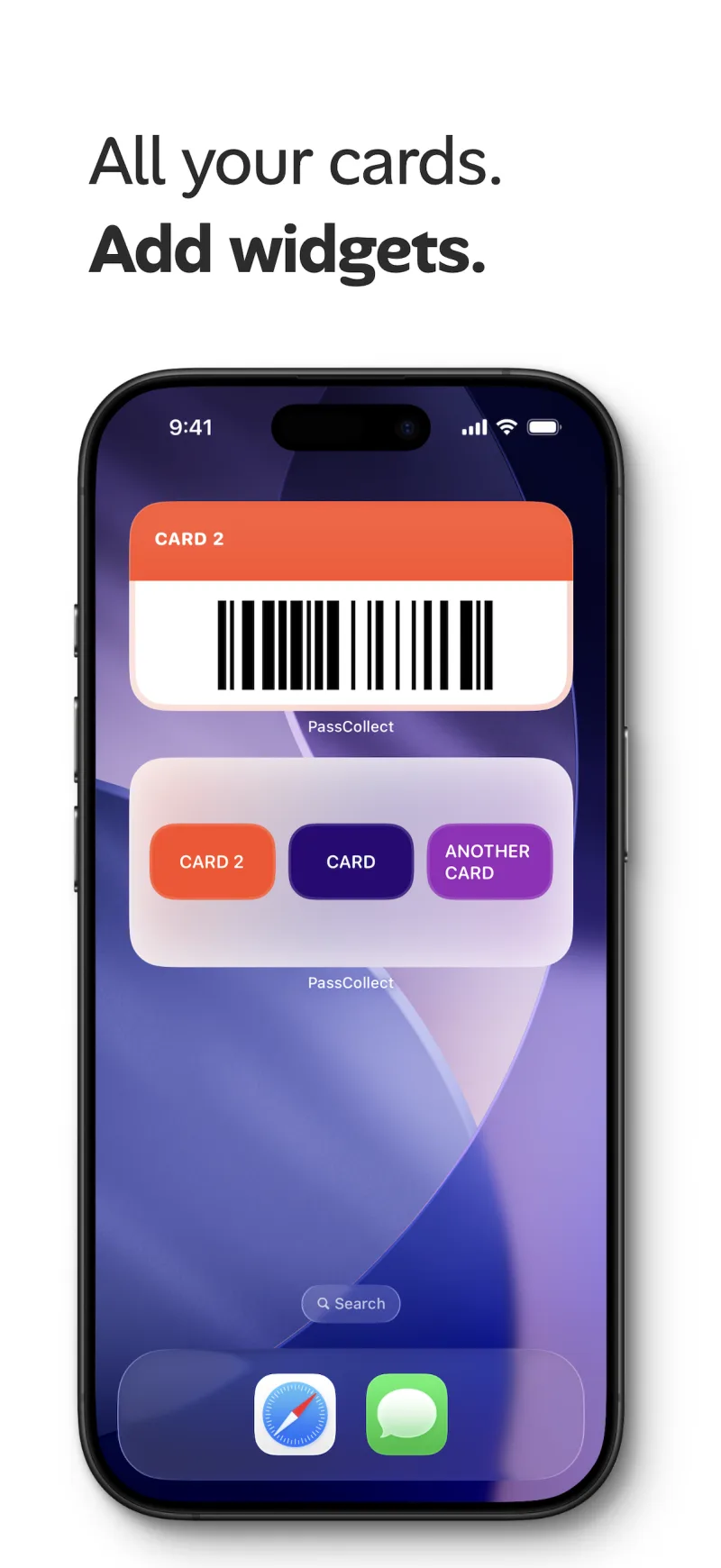
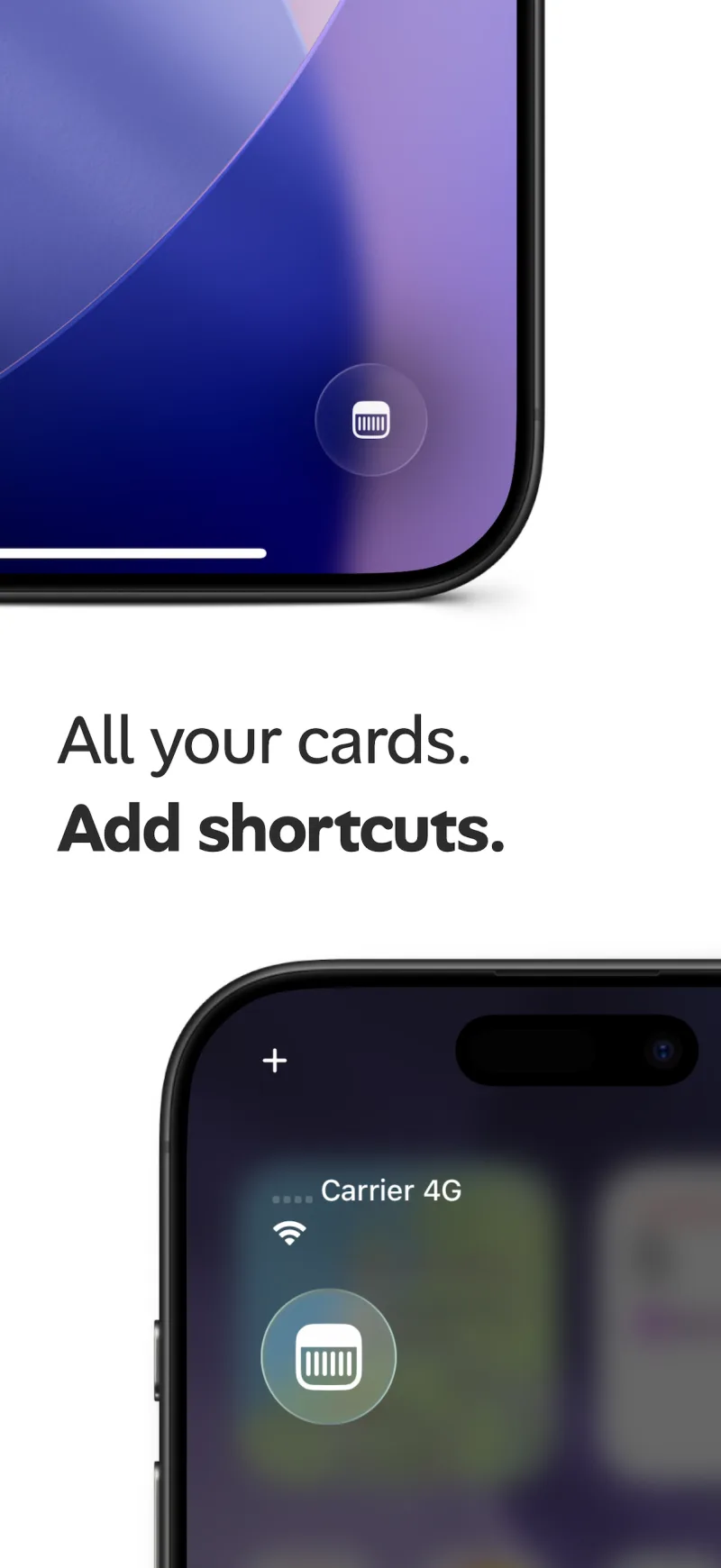
Summary: PassCollect has Lock Screen shortcuts and Home Screen widgets that open your most-used cards with a single tap. One widget shows a card's barcode right on the Home Screen. Another gives you buttons for several cards at once.
Which quick-access options are there?
| Option | Where it lives | What it does |
|---|---|---|
| Shortcut | Lock Screen | Opens PassCollect with one tap, without unlocking first |
| Single-card widget | Home Screen | Shows one card's barcode directly on the Home Screen |
| Multi-card widget | Home Screen | Shows buttons for several cards, each one tap away |
Add a PassCollect widget to your Home Screen
- Touch and hold an empty area of your Home Screen until the apps jiggle.
- Tap Edit, then Add Widget.
- Search for PassCollect and choose a widget. The single-card widget shows a card's name and barcode. The multi-card widget shows buttons for several cards.
- Tap Add Widget, place it where you like, and tap Done.
Add a PassCollect shortcut to your Lock Screen
- Touch and hold your Lock Screen, then tap Customize and choose Lock Screen.
- Tap one of the shortcut buttons at the bottom of the screen to replace it.
- Search for PassCollect and select it.
- Tap Done.
You can also add the same control to Control Center.
Which cards should you put there?
Keep the cards you use every week in widgets and shortcuts, like your supermarket or gym card. Cards you rarely need can stay in the app, where you can search and sort the full list.
Related guides
Frequently asked questions
Can I access my cards from the Lock Screen or Home Screen?
Yes. PassCollect offers Lock Screen shortcuts and Home Screen widgets so you can get to your most-used cards with a single tap.