 PassCollect
How to add a loyalty card to PassCollect by scanning its barcode
Summary: To add a card in PassCollect, tap the + button and either scan the card's barcode with your iPhone camera or upload a photo of the card. You can then edit the card's name, number, logo, barcode type and color, and attach photos of the front and back.
What you need
- PassCollect installed on your iPhone (download it free)
- The physical card, or a photo of it
You don't need an account. See why PassCollect works without one.
Step 1: Scan the barcode
- Open PassCollect and tap the + button in the top-right corner of the card list.
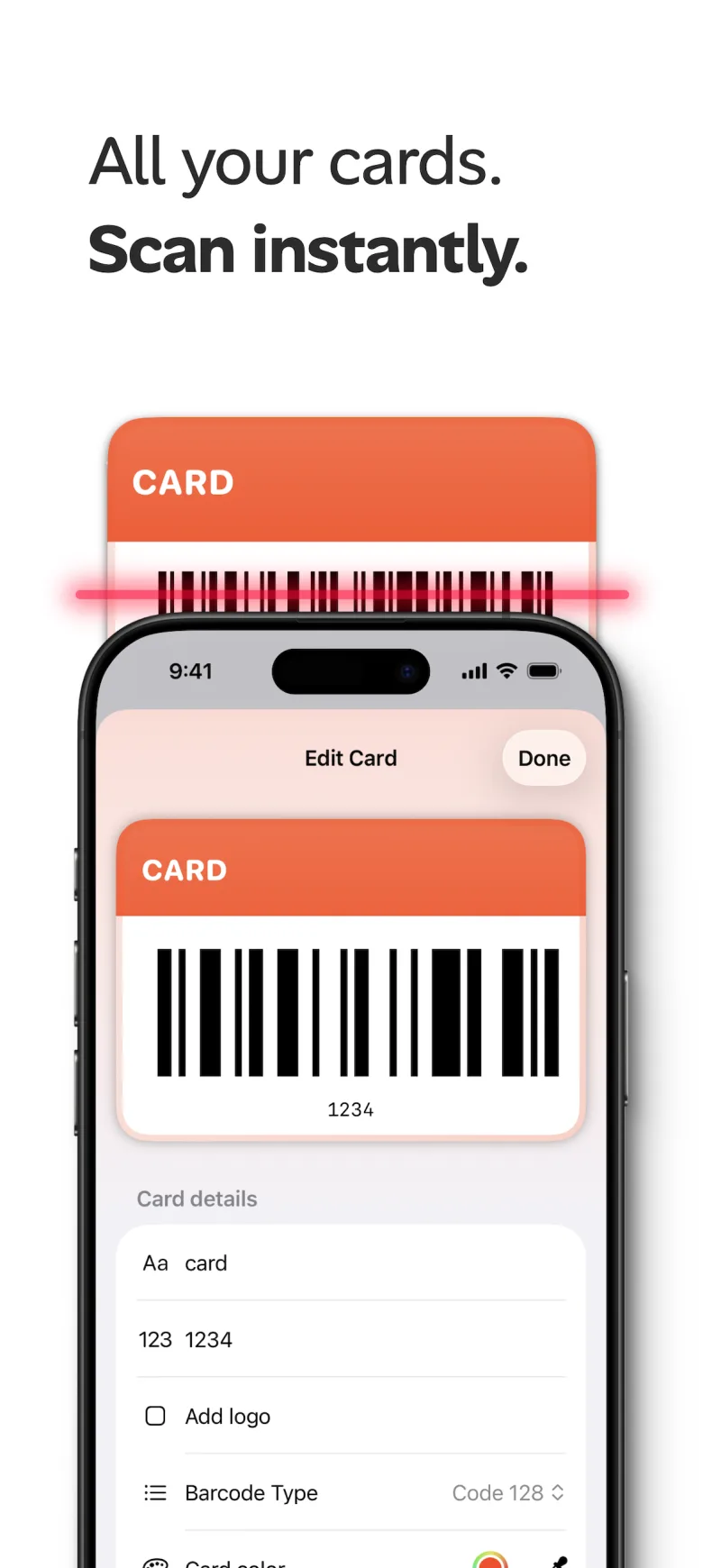
- Point your camera at the card's barcode. PassCollect reads it instantly.
- If you don't have the card with you, upload a photo of it instead.
PassCollect allows camera access only so it can scan inside the app. No images or data leave your device. See the privacy policy.
Step 2: Check the card details
After scanning, the Edit Card screen opens with a live preview of your card at the top. Under Card details, you can change:
| Field | What it's for |
|---|---|
| Name | The label shown on the card, such as the store's name |
| Number | The number encoded in the barcode, filled in from the scan |
| Logo | An optional logo for the card |
| Barcode Type | The barcode format, for example Code 128 |
| Card color | The color of the card in your list |
Tap Done to save the card.
Step 3 (optional): Add front and back images
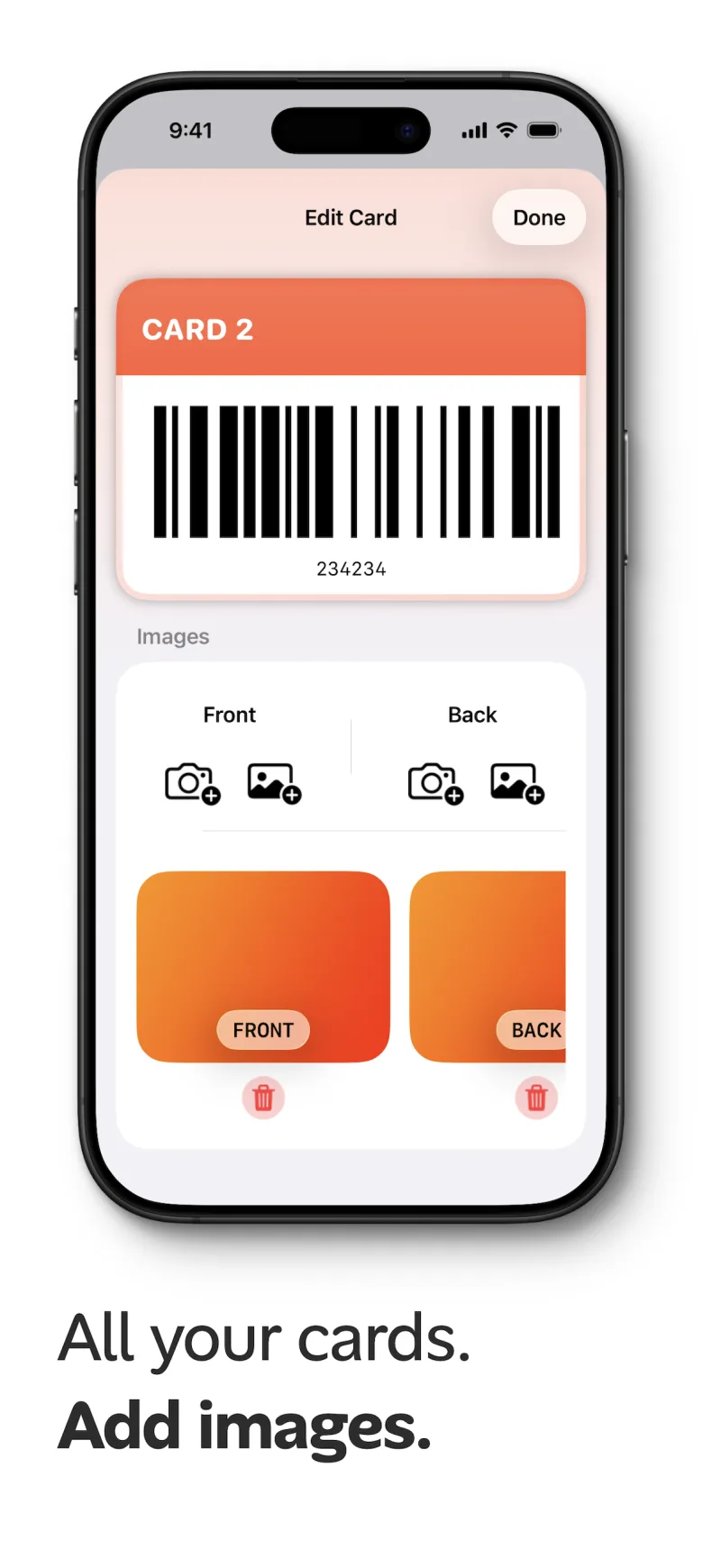
Some cards have useful information printed on them, like a member number or an expiry date. In the Images section of the Edit Card screen, you can add a Front and a Back image. Each one can come from the camera or from your photo library. Tap the trash icon under an image to remove it.
Tips for a clean scan
- Hold the phone steady and parallel to the card.
- Make sure the whole barcode is in view and well lit.
- If a scan picks the wrong format, change Barcode Type on the Edit Card screen.
What to do next
- Show the card on your Apple Watch
- Add a Lock Screen shortcut or Home Screen widget so the card is one tap away